Completing a Task
The most common way to use the task management solution described here is through completion of tasks. In this section we demonstrate how easy it is to complete a task and how to accomplish it. While in this particular section we are referring explicitly to the Done state and the Complete action, this process is very similar regardless of the complexity of the work queue.
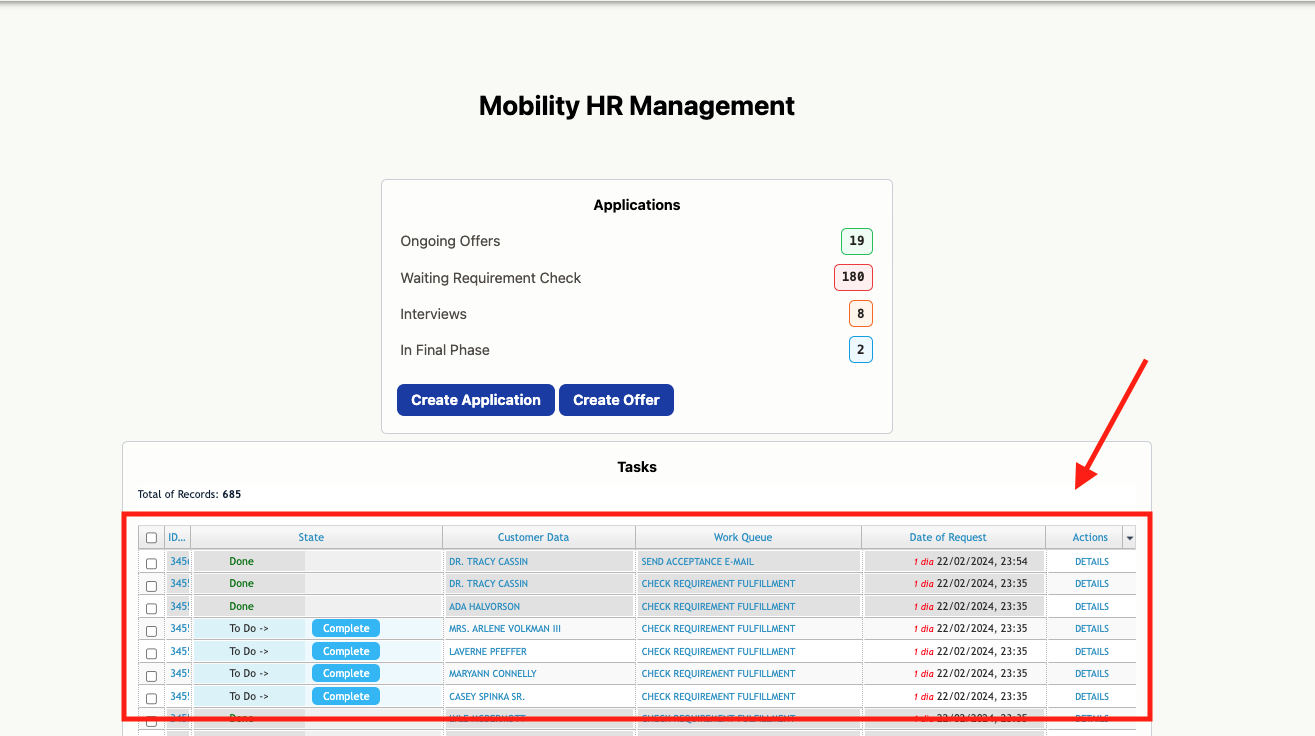
First, you'll need to head to where your Work Items are listed. This is likely a dashboard as displayed below. In the listing of Work Items you'll find an important column called "State" which indicates the current state of a work item (To Do, Done, Pending, In Progress, etc.) and the possible actions in that state. In the example below, all work items are To Do's, so their only available action is "Complete".
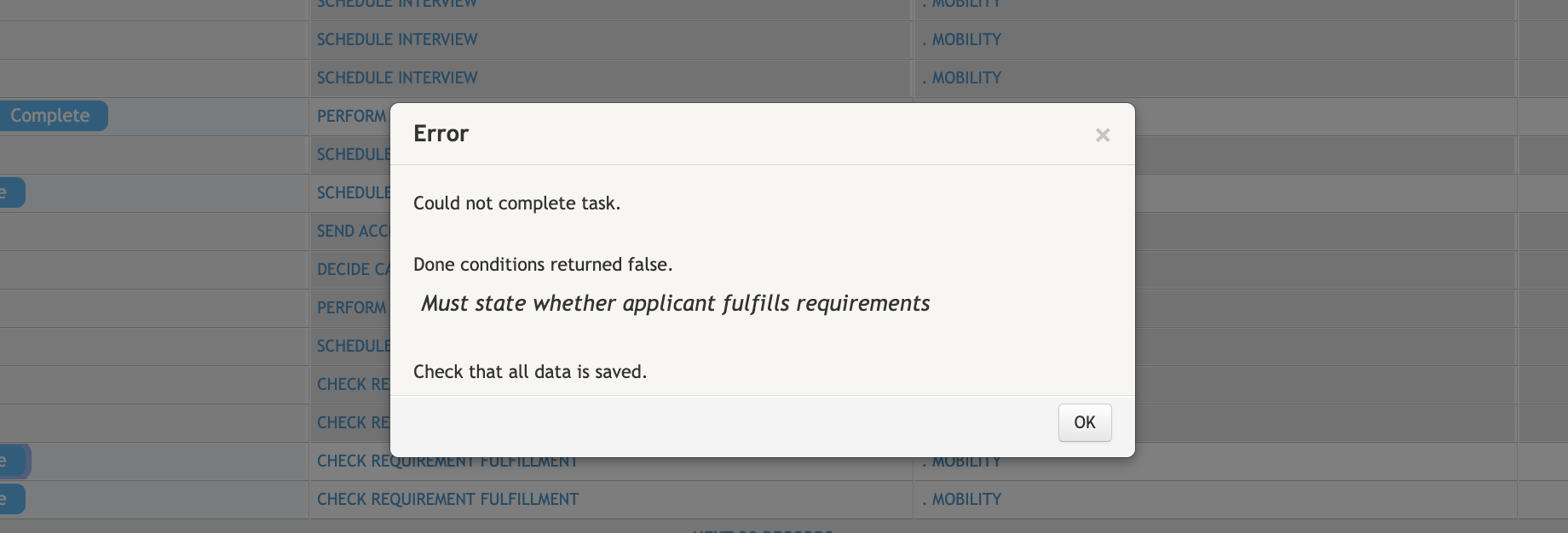
These actions are clickable buttons that can be used to alter the state of the Work Item - and advance the process for that particular record. However, in this case, because the Work Queue "Check Requirement Fulfillment" requires the agent to set whether or not the applicant fulfills the requirements, we are met with an error if we try to incorrectly complete the task.
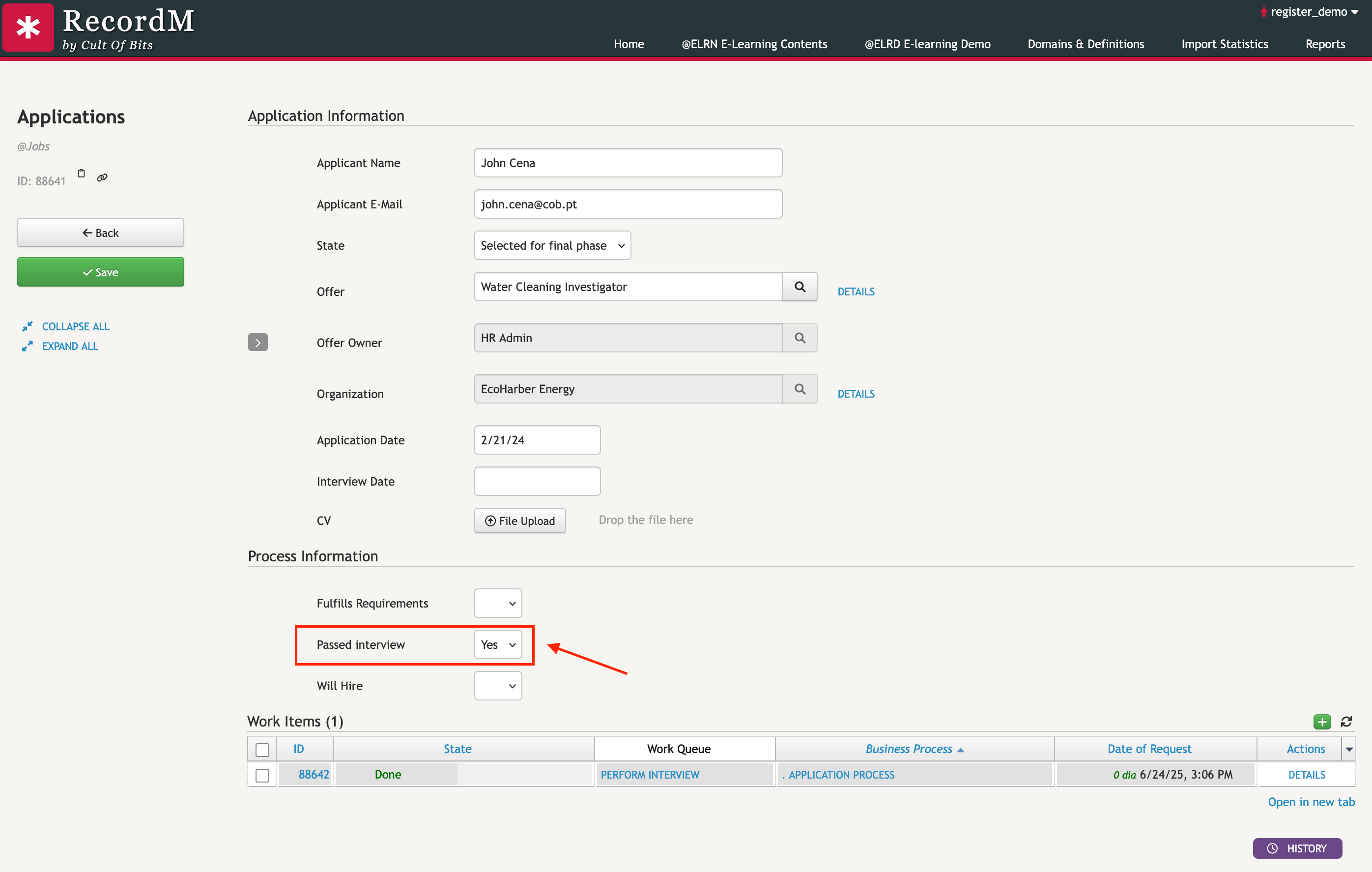
To do this, simply navigate to the work item's Customer Data, which is the record associated with that task. In the record, set the Passed Interview field to either "Yes" or "No". Once this information is provided, clicking the Complete button will successfully process the task and move the application to the next appropriate state based on your response.