
Platform Access
To access the platorm you either click on a link sent to you or copy and paste the link's address in your Web browser's address bar. Once you get to the login page, you can enter the username and password previously assigned to you in the relevant fields.
The login page you will find will be similar to the one below:
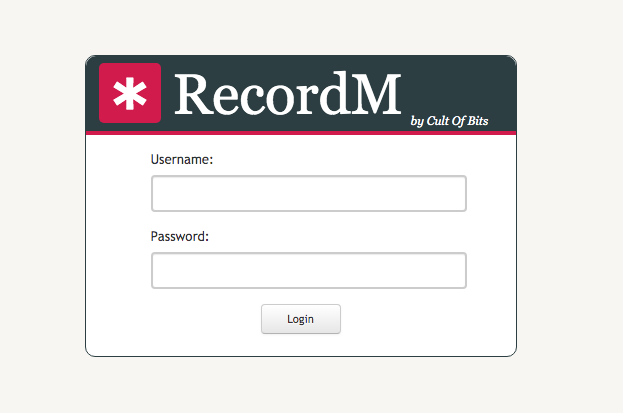
We advise users to change their initial password immediately after logging in for the first time.
How to change the password?
In the top right corner, click on the down arrow next to your username: 
Access your profile:
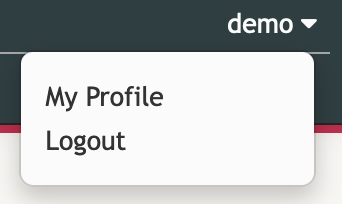
In the User Data field group, enter your newly chosen password both in the Password and in the Password Confirmation fields.
Don't forget to click save and. You should also store the new password elsewhere (i.e., you can write it on a post-it or save it in a password manager app), in case you forget it.
Steps:
- Login with the username and password provided to you.
- In the top right corner click the down arrow next to your username.
- Click on My Profile.
- In the field group User Data fill the field "Password" with your new password.
- Confirm your new password.
- Save.