
Creating a Report
Managing reports is facilitated through the utilization of a RecordM definition. To initiate the creation of a new report, simply access the Reports definition and click on the 'New Record' button.
A Report is composed by 4 blocks:
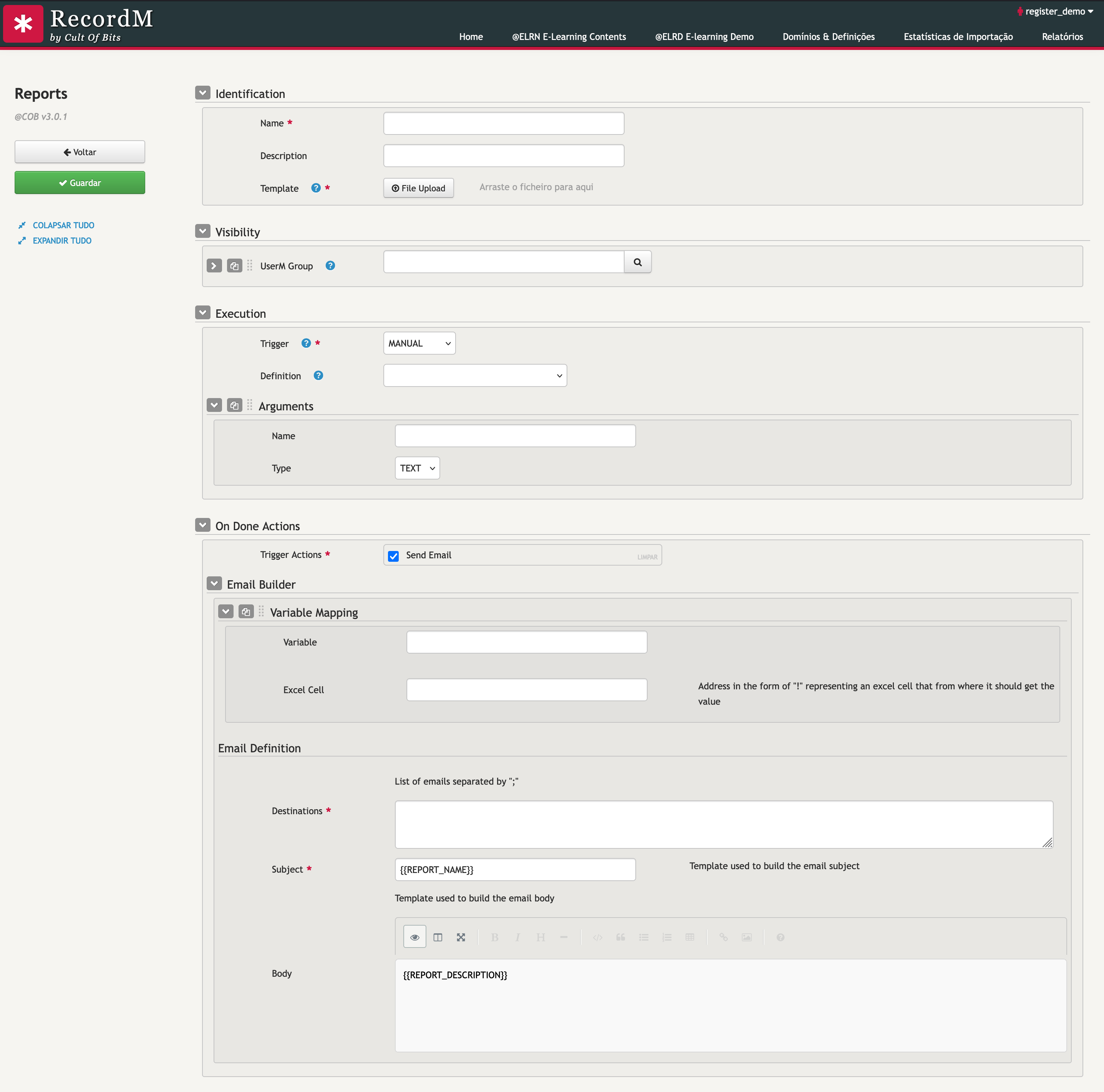
Report Identification
Fundamental information about the report includes its name, a brief description of its intended purpose, and the specified report template to be used during generation.

For more information on how to create a report template please refer to Excel Template Configuration.
Report Visibility
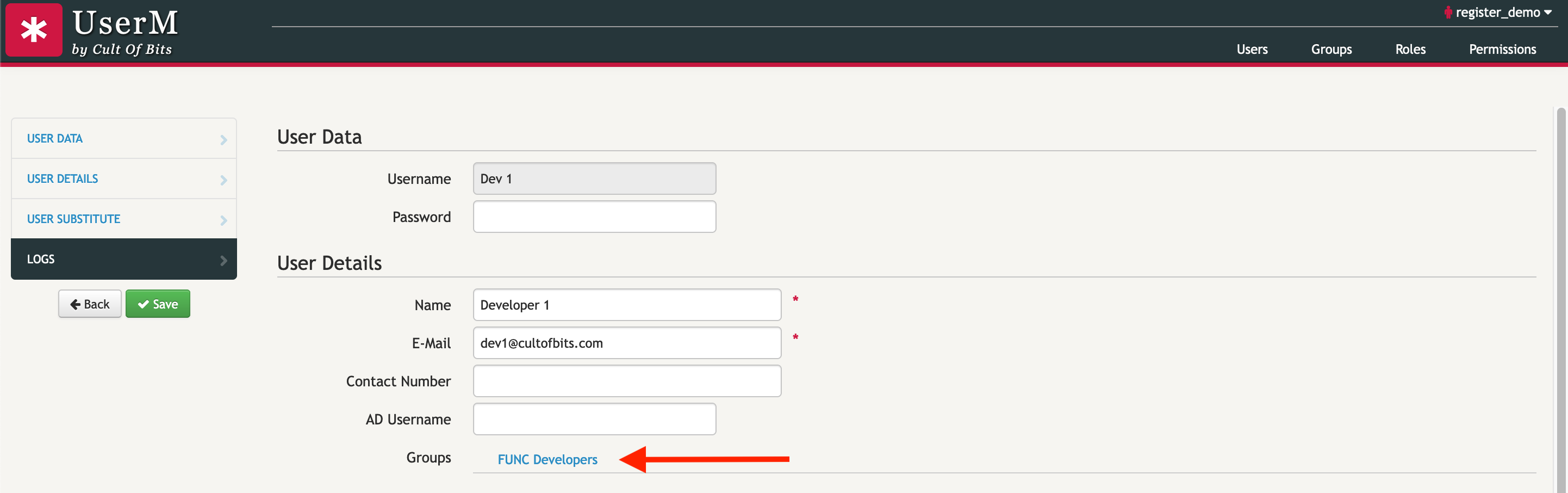
The list of groups that will have access to this report. The restriction with the help of lelve4 permissions and is made with the cross reference between the user groups and list of groups defined here.

Report Execution
Observing the images above, you'll notice that a report comprises numerous input fields, assisting in defining a new report and determining its generation parameters. ReportM currently accommodates three execution triggers for generating reports:
Manual Trigger
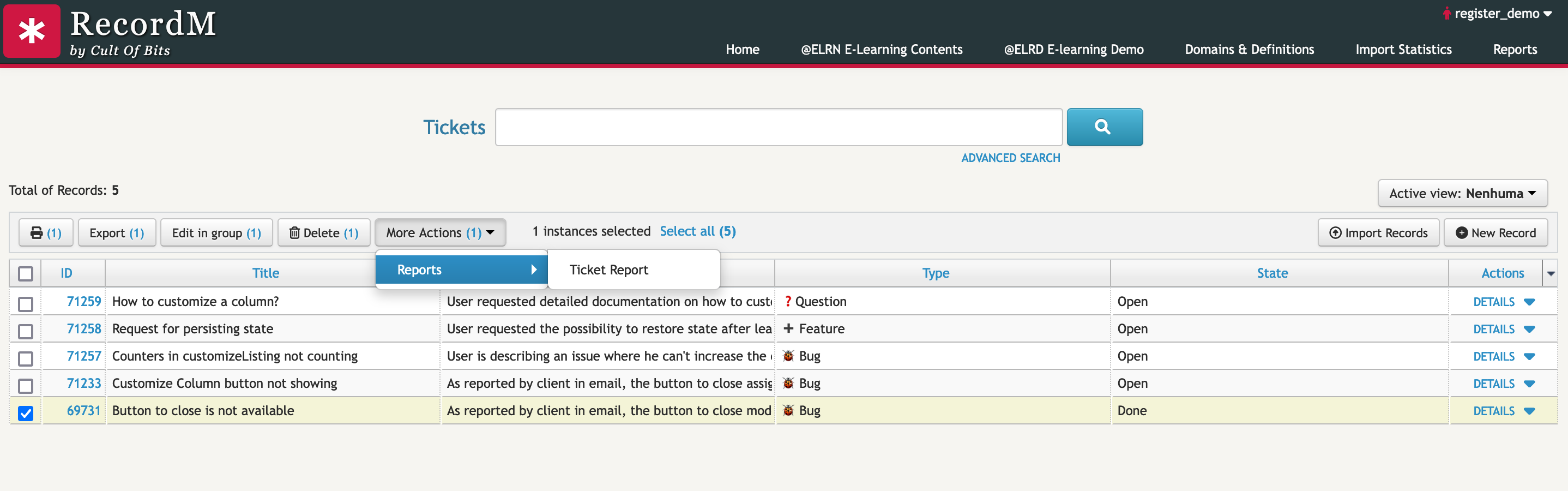
This trigger will introduce a new menu in the search definition, allowing you to generate the report optionally against selected records.
TIP
Any selected rows will be passed to the report via the variable query.

Extra arguments for the report
You can also extend the report generation form by providing additional arguments that will be passed into the report. For more information about report arguments, see Report COB_ ARGS.
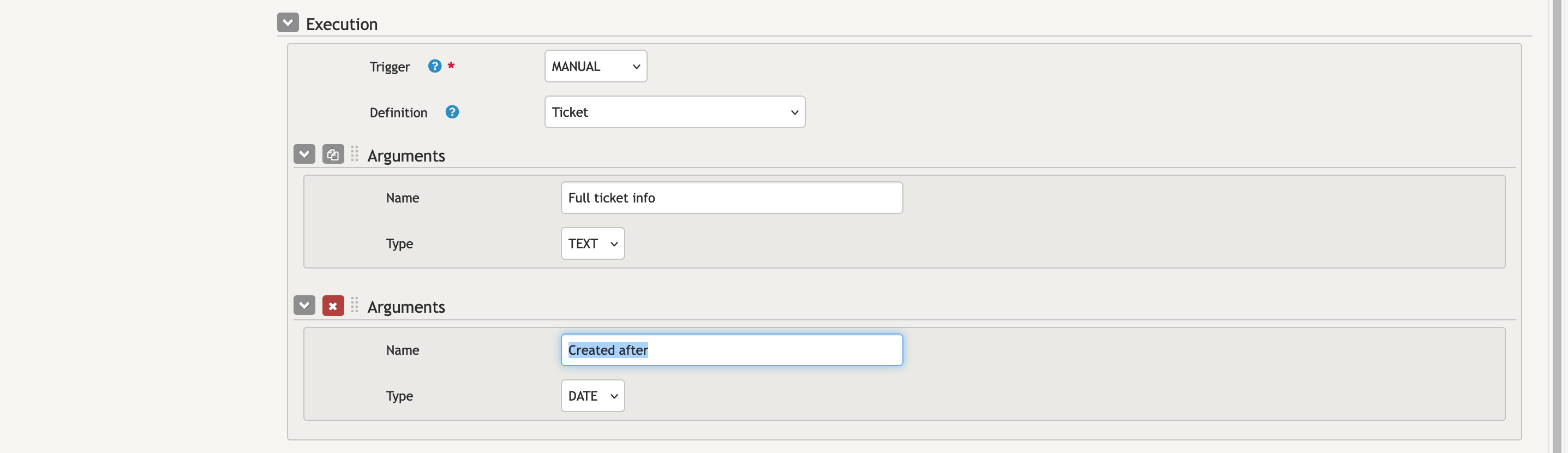
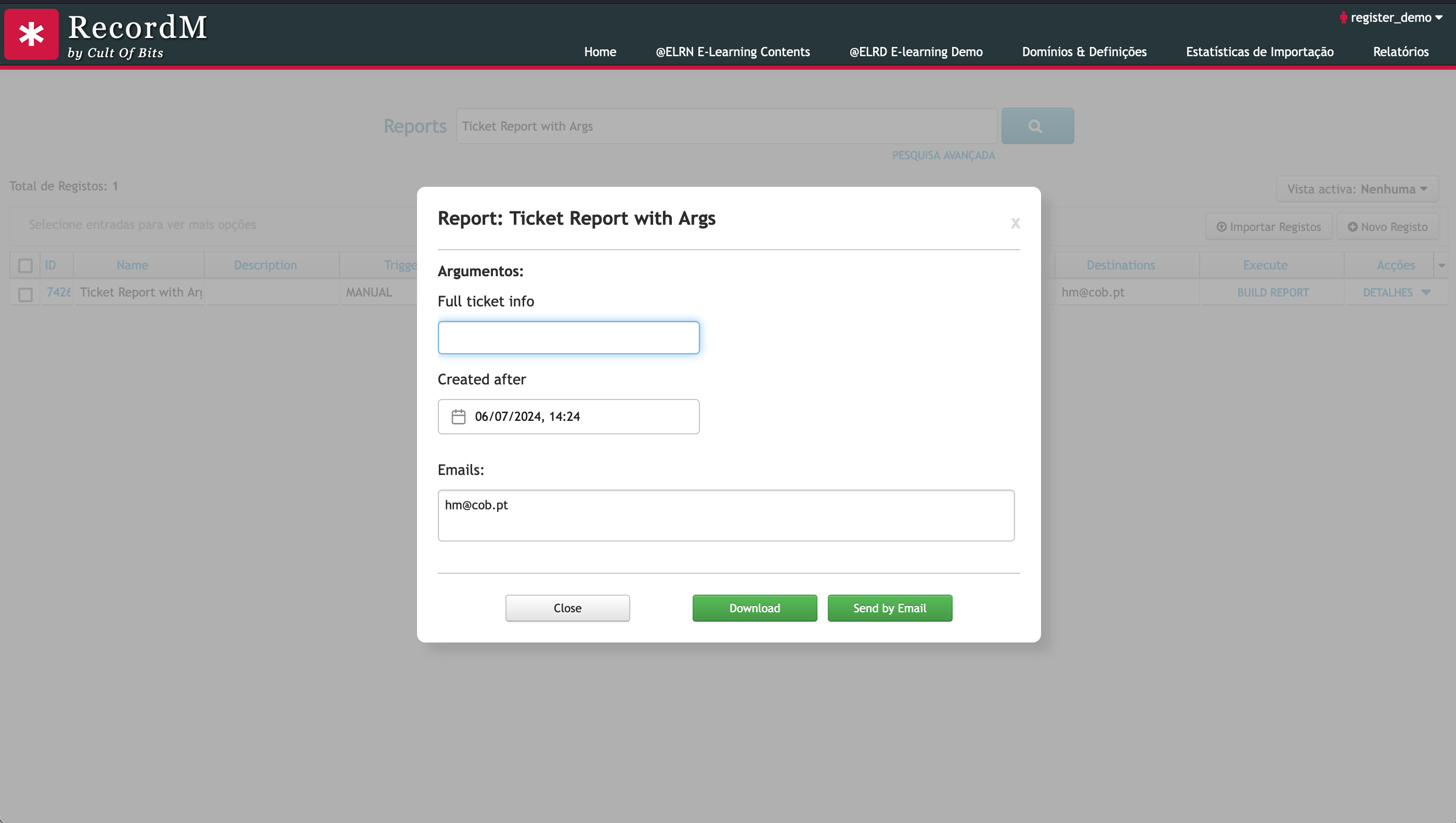
During report generation, the values entered in these fields will be passed to the report service as a cob arg value, allowing you to use them in the report.
Event Trigger
This trigger generates the report based on an event. It evaluates the Groovy expression specified in the condition field, and if it proves to be true, the report will be generated.
TIP
For more information on how to write groovy conditions please refer to ...
msg.field("State").changedTo("Done")
Scheduled Trigger
This trigger automates report generation on a scheduled basis. The only requirement is to define the frequency at which the report should be generated.

Report On Done Actions
After generating a report, the user has the flexibility to determine subsequent actions. At the moment, the supported actions are:
Send the report to a list of recipients
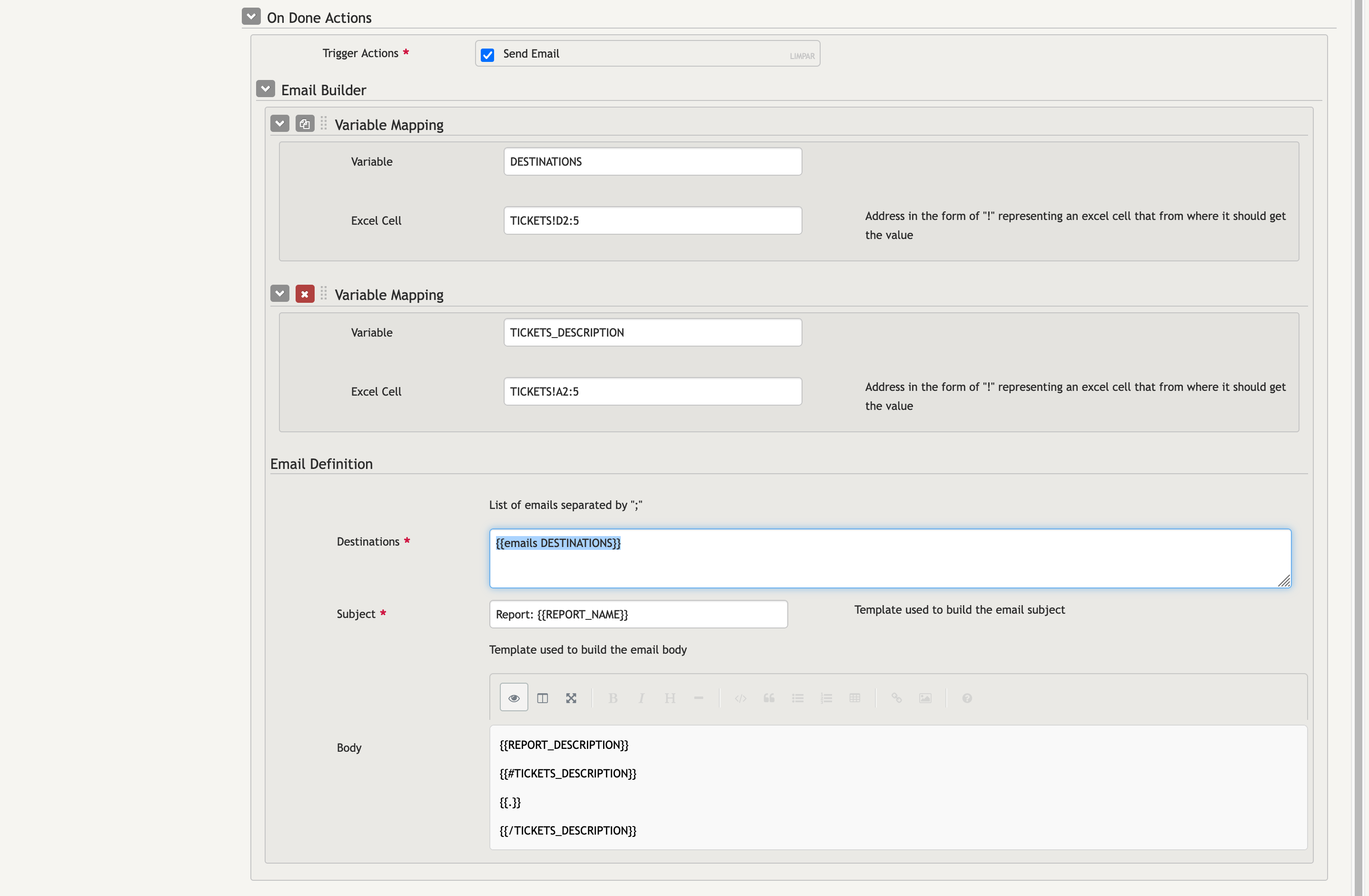
The email configuration is quite straightforward, resembling a typical email setup. Here, you'll specify the recipient(s) of the email, the subject, and the body content.
Additionally, support for placeholders is available. This enhanced functionality is made possible with the assistance of Handlebars, enabling more powerful emails where the data provided to the Handlebars context can be extracted from the report itself. Initially, variables are defined along with their corresponding cell references (e.g., sheet!A1), which can then be referenced within the Handlebars template.
Cell ranges
If you prefix the cell reference with the last row number, such as sheet!A1:10, you can define a range. In this scenario, you'll have access to all non-empty values of column A across rows 1 through 10.
Default variables available in Handlebar context:
| Variable | Description |
|---|---|
| REPORT_NAME | the report name |
| REPORT_DESCRIPTION | the report description |
| REPORT_SOURCE_INSTANCE_ID | the instance id that triggered the report generation. Only applicable to reports that are triggered from an event |
Handlerbar helpers:
| Helper | Description | input type | arguments |
|---|---|---|---|
| emails | concatenate a list of values separated by ';' | List | List |
| join | concatenate a list of values separated by the provided symbol | List | char (default to ',') |
| iterate | split the string value using the provided char and iterates | String | char (default to ',') |
| isEqual | compare two values and return TRUE if equal | any | |
| isNotEqual | compare two values and return TRUE if not equal | any |
Attaching the report to the instance
In this case, you will need to indicate the name of the field to which you want to attach the file.

WARNING
Attaching a file to the source instance of the event is only possible if the trigger of the report is of type EVENT