
How to Use the CoB Platform
In order to answer some of the questions we are most frequently asked, we will now give you some very general examples of what you can do with the help of our platform. You can find more detailed explanations of the answers given here in our documentation.
How do I access the platform?
You will be given a link to access the machine, along with the access data for each user. The login page will be similar to the one below. If desired, this page can be configured with the client's logo.
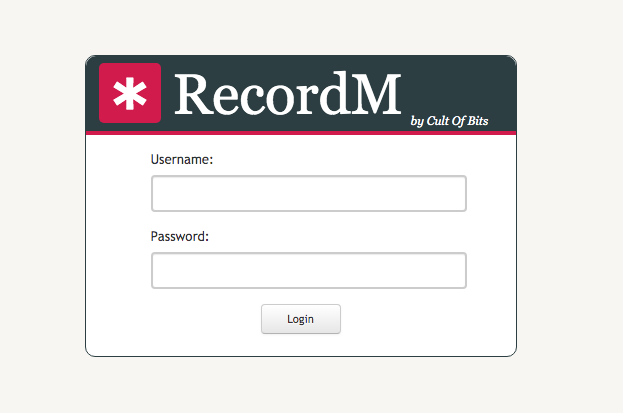
With the credentials provided to you, you can access the platform and start adding data records and making changes to your profile.
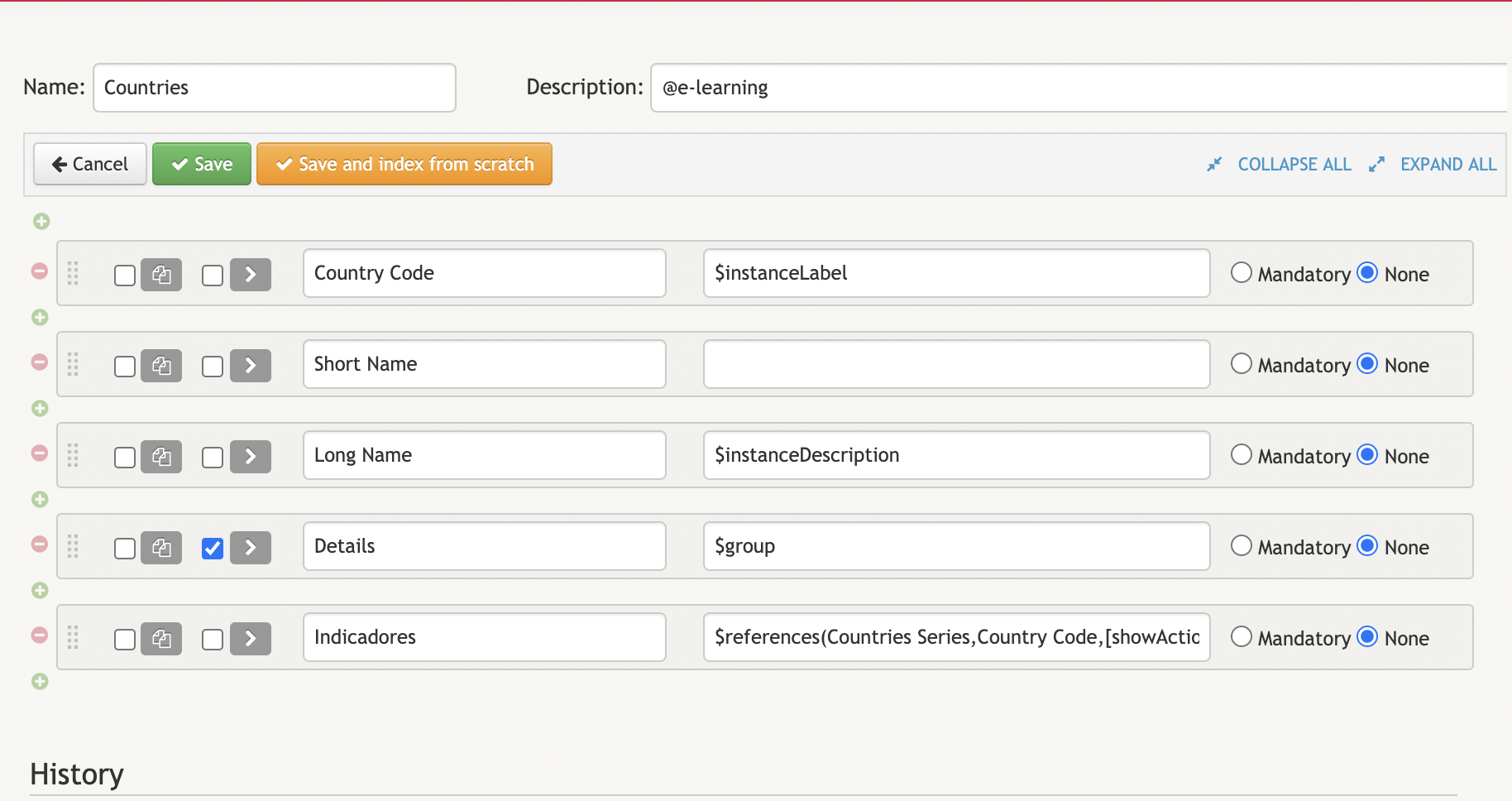
How can I add indicators to my list?
By accessing the definition, you can add and delete fields, include descriptions or categorize fields.
Can I change the order of the fields?
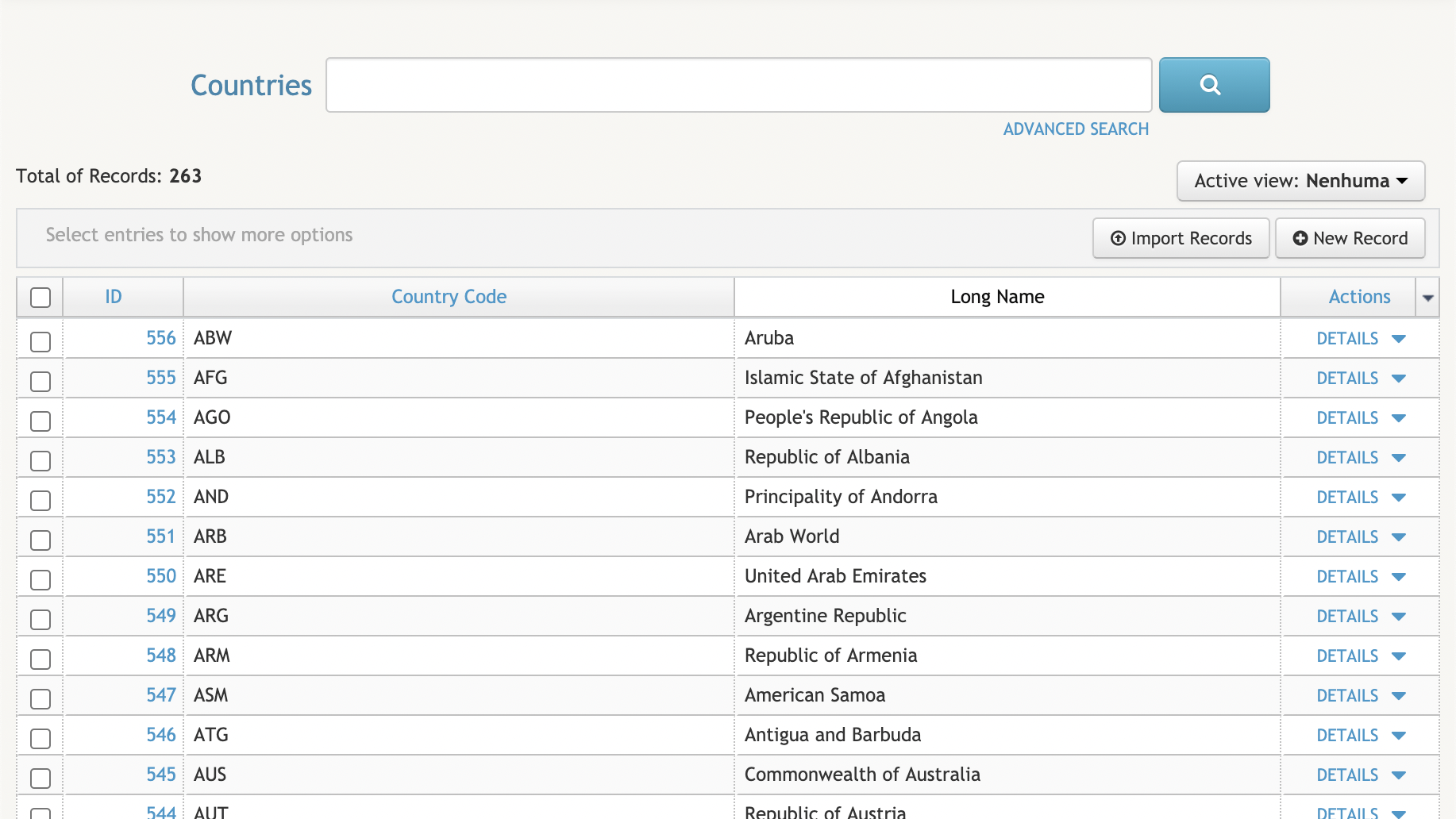
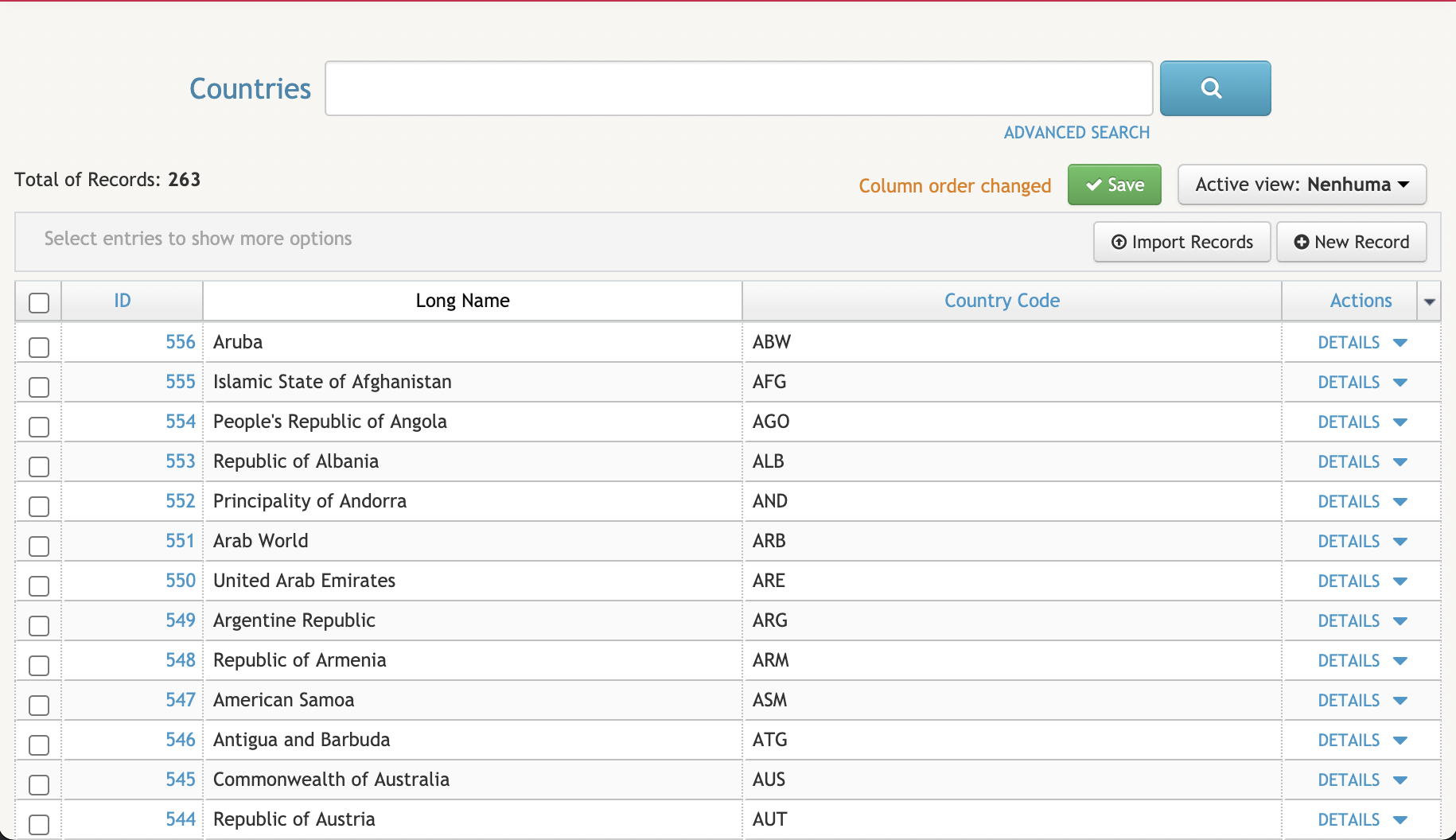
With the mouse cursor over the field you want to move, click and drag in the direction you want. In the image below, you can see the field you want to move to the left:
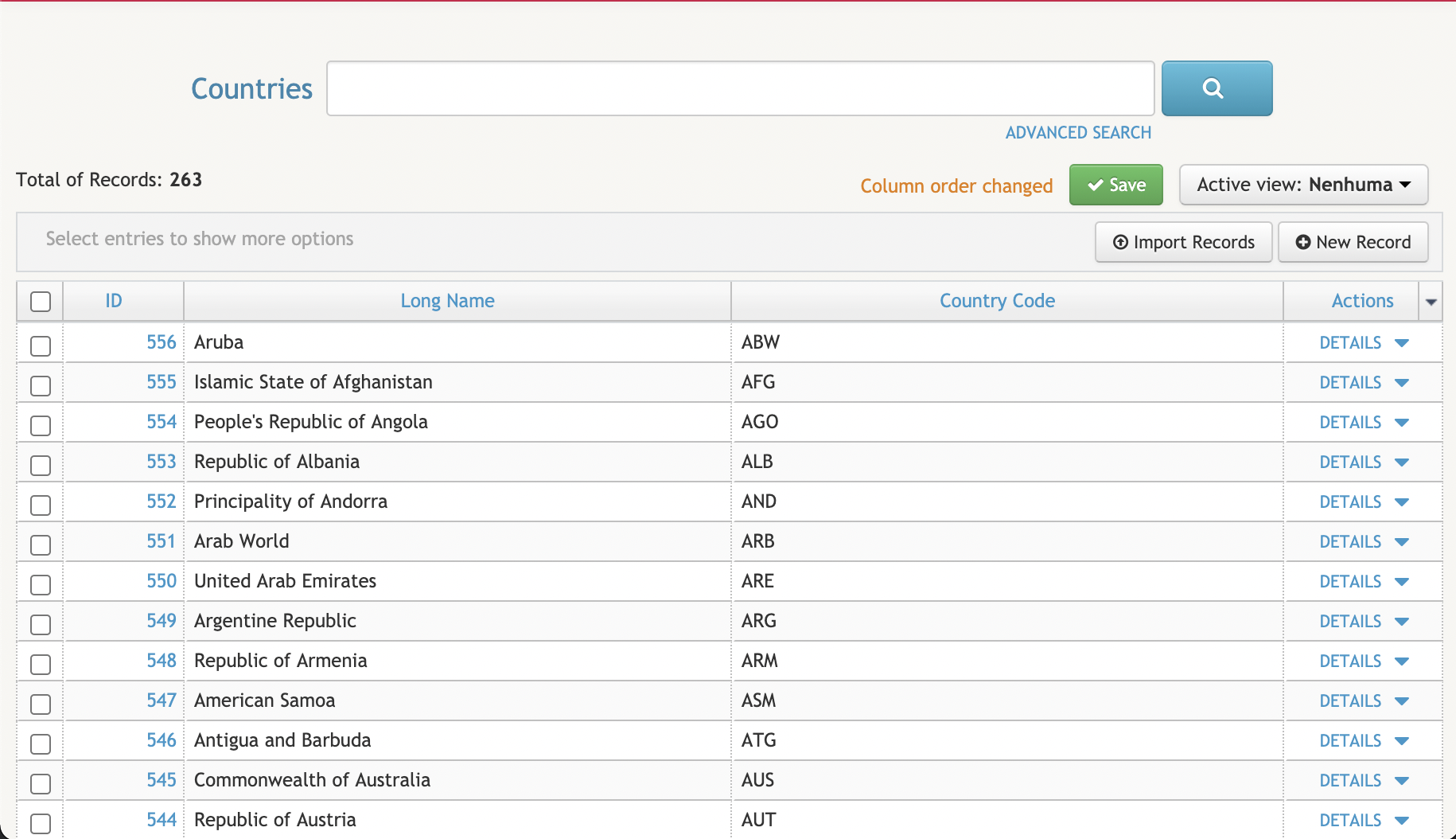
In the following image you can see the field with the movement already made and with the indication that the order of the columns has been changed:
Can I sort the listings?
To sort the lists, simply click on the name of the field you want to change. Sorting will be done alphabetically or numerically, depending on the type of field you want to change.
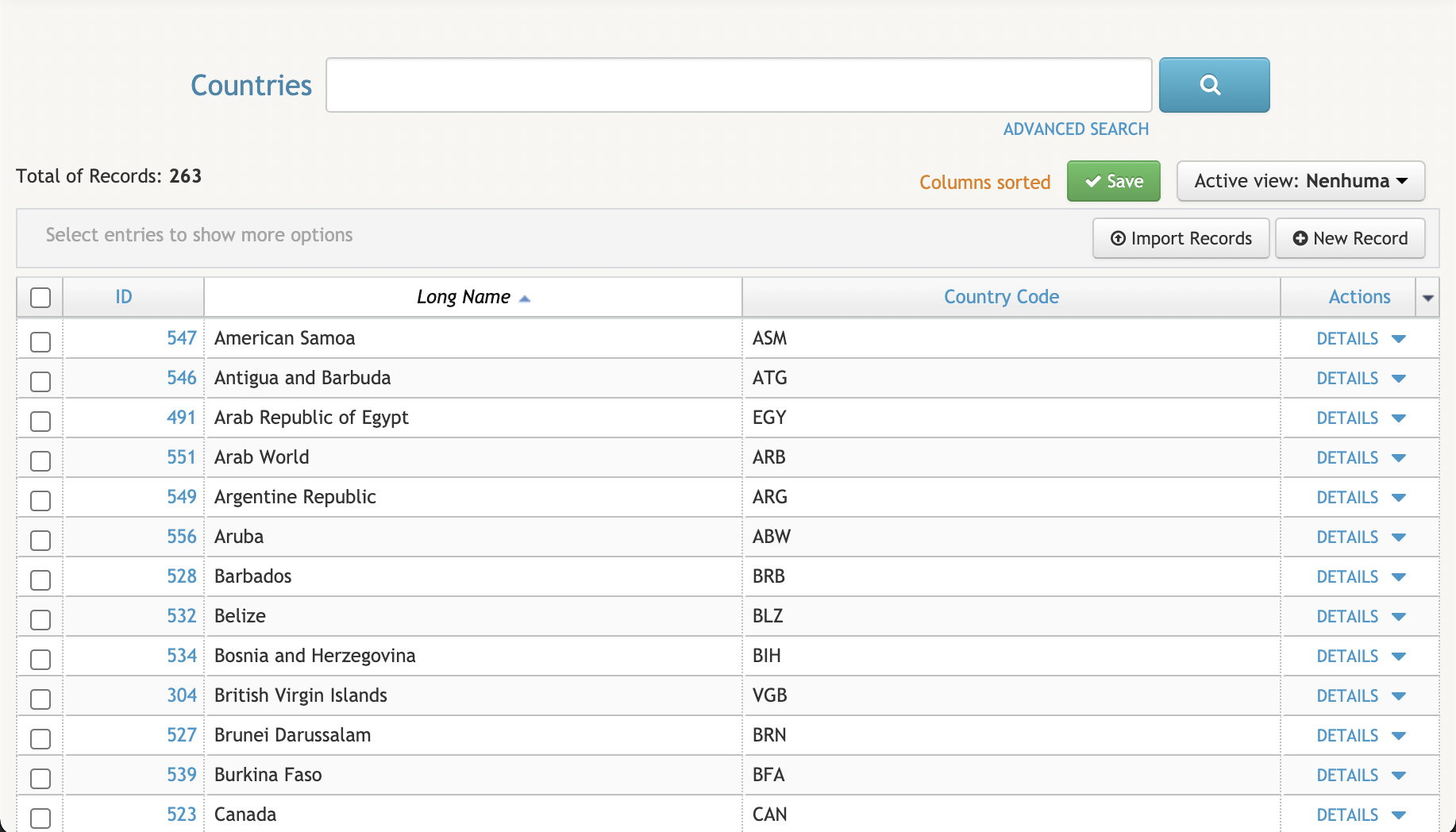
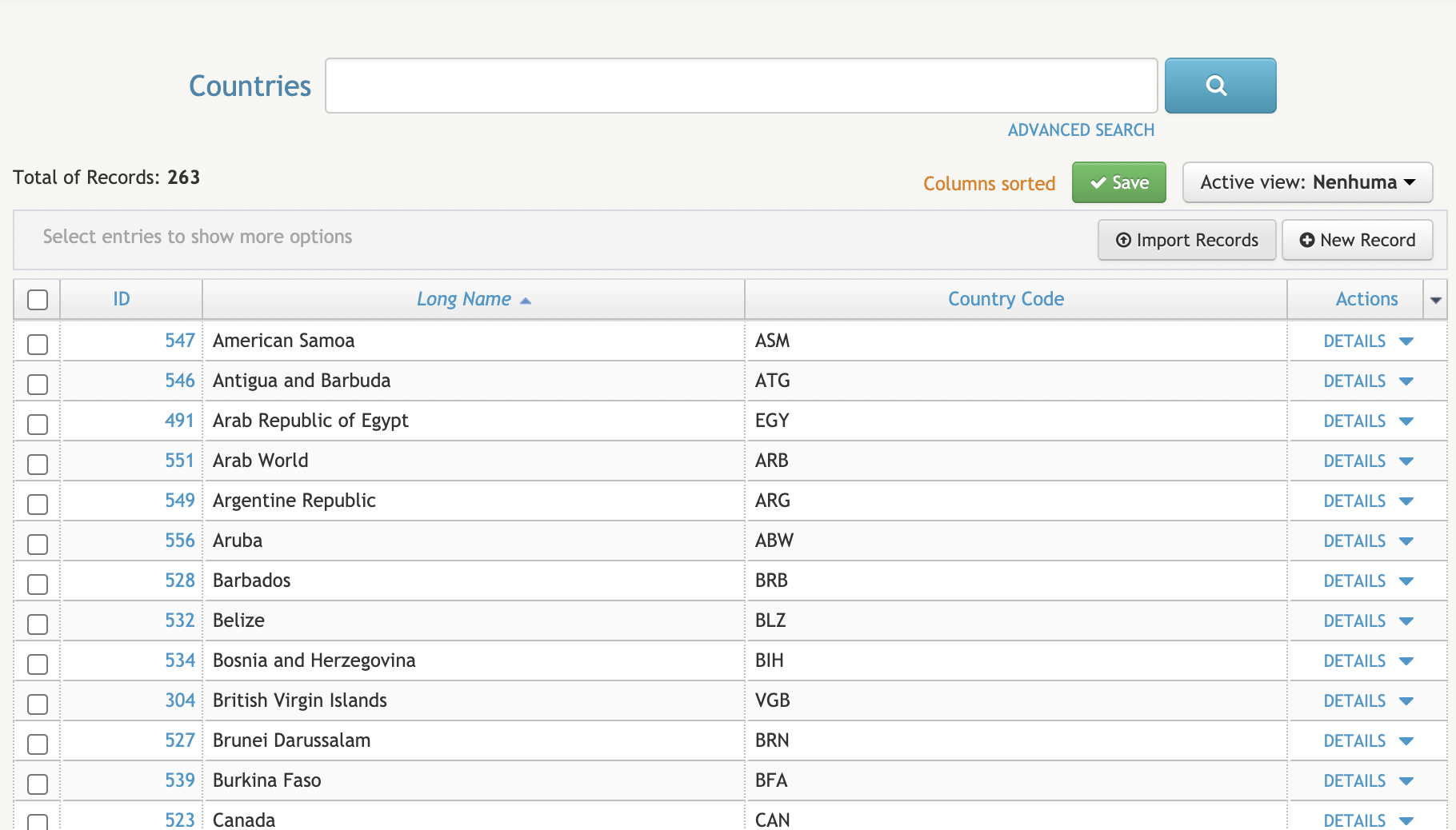
In the image below, the Long Name field is selected in order to sort the data according to its type (alphabetical sorting):
You can then see that the order of the list has been changed, as well as an indication that the list has been reordered:
Can I exclude fields from my list?
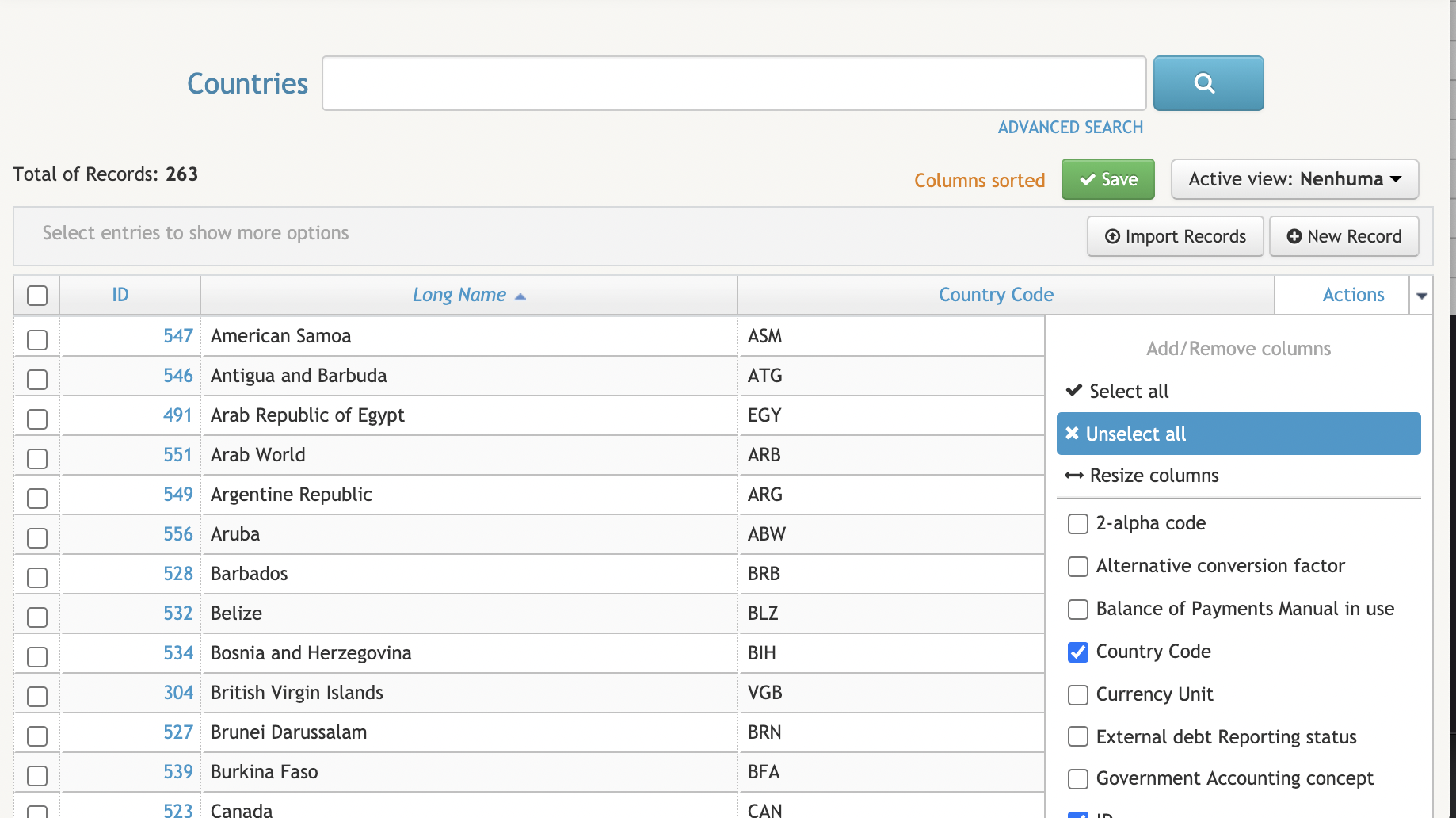
Yes. The CoB platform allows you to add and delete fields to any listing.
All you have to do is click on the drop-down arrow on the right-hand side of the Actions field and then select the fields you want to exclude or add.
Can I export this data?
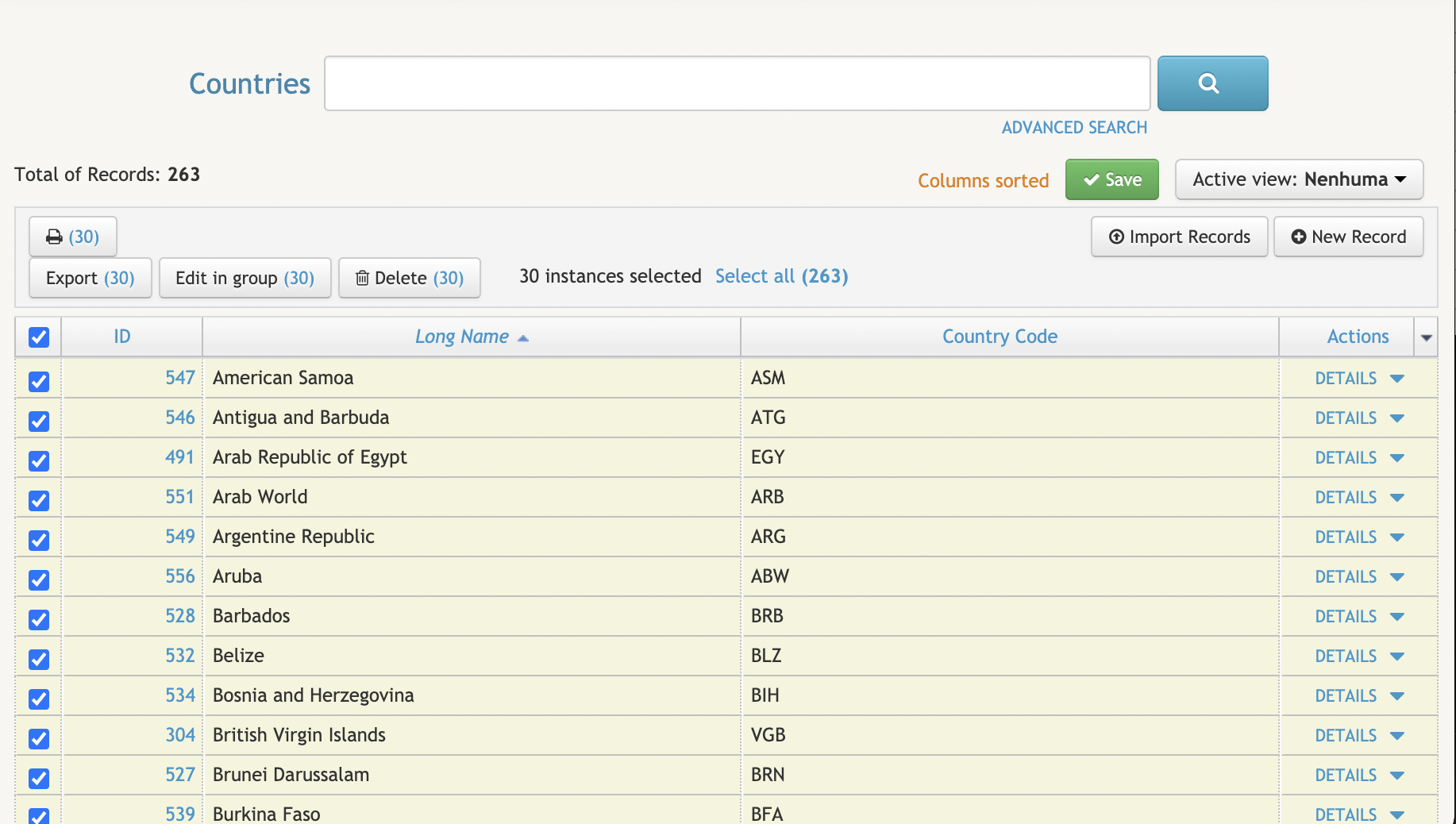
Yes, but first you have to select the instances you want to export. You can select all the records or just part of them. Once you have selected the fields you want to export, simply click on the Export button (indicating the selected instances) located in the top left-hand corner (above the list) and confirm. A file in .xlsx format containing the exported data will then be downloaded to your computer.
Can new data sources be added?
Yes, you can import data as long as it is in files saved in .xlsx format. To do this, simply click on the Import Records (Importar Registos) button on the right-hand side above the list, as shown in the image below:
Then select or drag the file you want to import. An import counter will then be generated where you can confirm the status of the import, as well as check the total number of successes and errors (if any).