Linking the Data Entities
We have created all the individual data entities that will be part of our application. What is still missing from what we have done until now to achieve a working model of an online survey for wine tasting is establishing the necessary connections between the data entities we have just created. Within the context of the CoB platform, this simply means that we must make references between the definitions.
But even before doing that, we must make sure that the CoB platform allows the data entities we have just created to communicate between them. This is done by creating a separate data entity which will help us get data generated by one entity into another entity. In other words, we need to create a domain. You can check how to create a domain in the Admin's Guide. In our case, we will assign the name Wine Tastings to the new domain and drag all the five definitions we have created to it:

We are now ready to make the required links between our data entities.
Adding reference fields to Survey
Since the user will not be able to identify correctly the event and himself/herself when the time comes for him/her to fill the survey form, our Survey definition will need to use data obtained from instances of Wine Taster and Events. Furthermore, since the user also needs to identify the wine he/she is evaluating, the Surveyalso needs to get data from the Winesdefinition. This will be done by adding references to those definitions in the Survey definition. In other words, we need to configure fields with a $ref() keyword pointing to the other definition we need to search in.
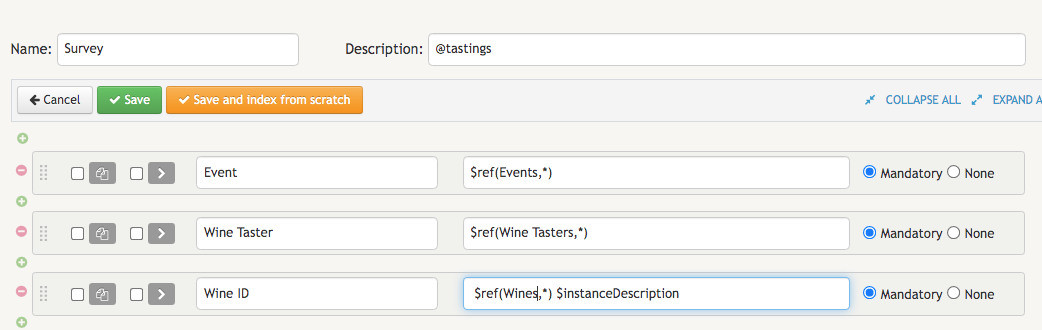
For instance, if we want a list of all the related events created up to this day to immediately appear in the Event field when we start typing something, we just need to configure that field with $ref(Events,*) , with the first parameter of the keyword inside the parentheses being the name of the definition and the second the particular instance of that definition from which we want to show related results. Since we decided to add an asterisk - * -, we will be showing results from all the instances.
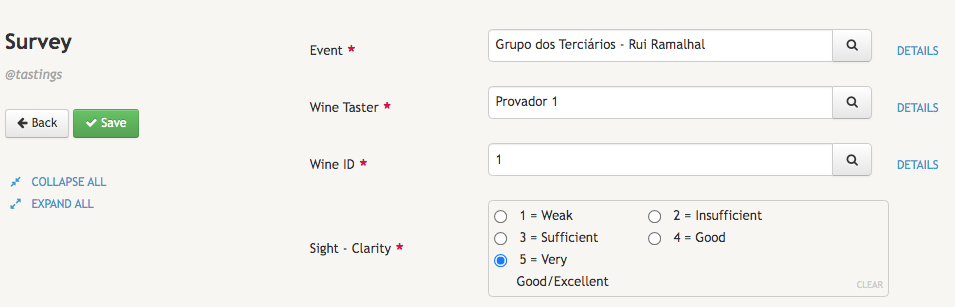
Everything we just mentioned also applies to Wine Taster and Wine ID, the other fields of type $ref() shown in the image below. After we make these modifications in the Survey, when a wine taster clicks on a link to a Survey instance and starts filling the form, the look of the application will be very similar to one in the image below:
Adding reference fields to Invites
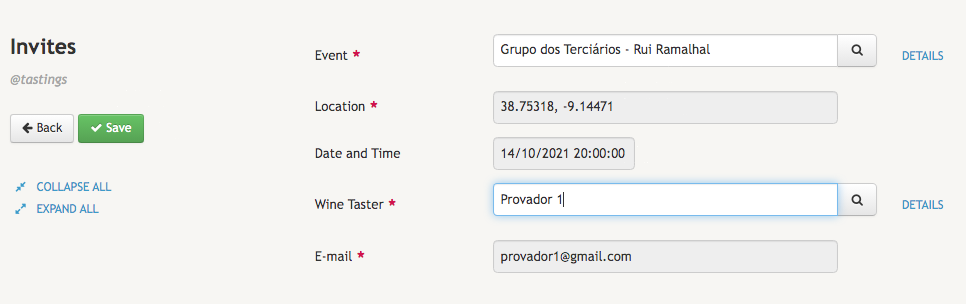
Back in the Invites definition, each instance of it will rely on references to the Events and the Wine Tasters definitions as well as to internal fields of these definitions. Since we have just explained how and when to use a $ref() keyword to configure the type of a field, there is no point in explaining either the Event and the Wine Taster fields. Both of these fields are used to search for data stored as an instance of another definition.
If, however, we just want to automatically get data values of instance fields of these definitions, we can configure a field with an $auto.ref().field() type as in the Location, Date and Time, and E-mail fields. Since the arguments of $auto.ref() keywords have to be the name of internal fields configured with type $ref() or $extRef(), this means that whenever we configure a definition field with the $auto.ref().field() type we need to have another field in the same definition that is configured with type $ref() of $extRef().
Do note however that in order to actually read the field values, we need to add the name of the original field of the external definition we are referencing in this definition as an argument of the keyword .field() that has to be inserted next to the keyword $auto.ref(). To avoid mixing up internal and external fields, you can use different terms. This is not always ideal or even possible. In the image below, you can see that we opted for using the same term as the title of the field used to get the Location of an Event. However, when it came the time to choose a title for a field that automatically reads the Date & Hour of an Event, we opted for a different term, i.e, Date and Time.
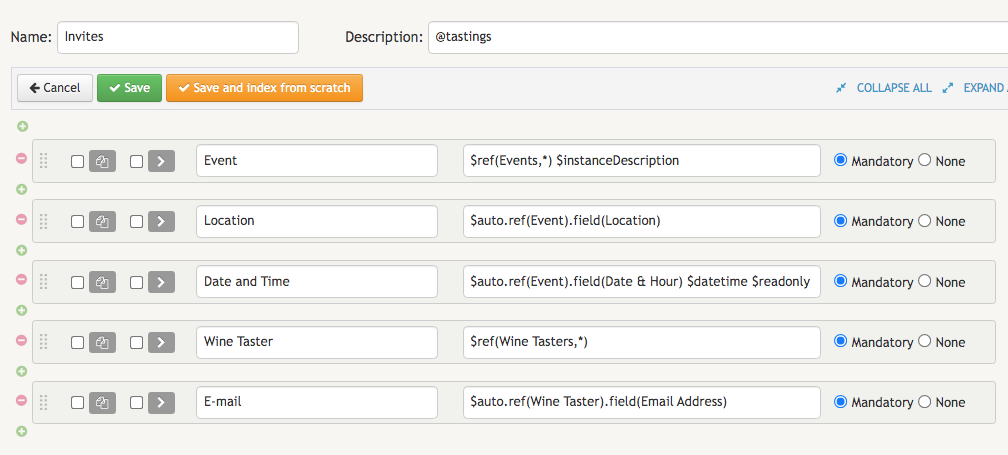
Once we add the links to other definitions and their fields, the event organizer can finally create invites and send them to his/her guests. If we find any problem with the reading of the field values of external definitions in any field configured with an $auto.ref().field() type, we can always add the type of the original external field to the description of the internal field as well as the $readonly keyword. This was precisely what we did in the Date and Time field of our Invites definition. Here is one example of an invite form correctly filled:
Adding reference fields to Events
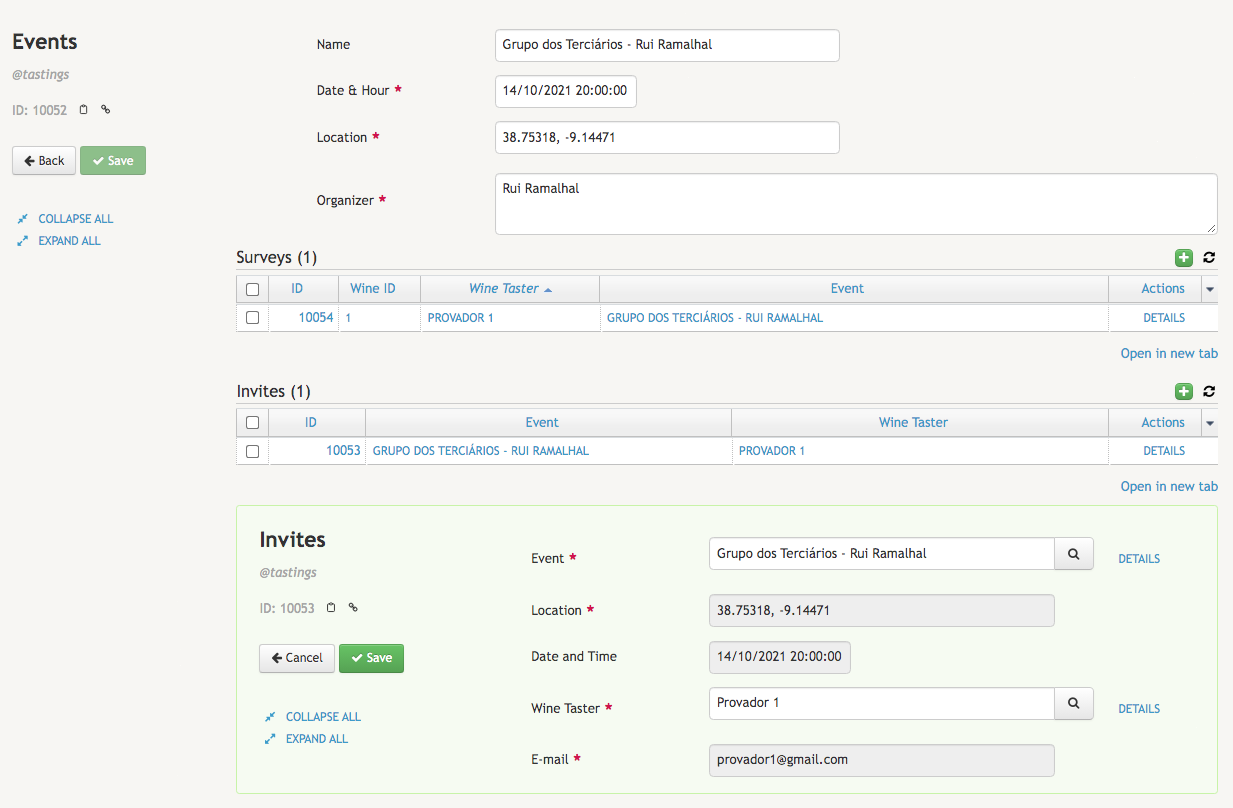
In order for the organizer to easily access all the online survey forms that were submitted after sending the invites for the wine tasters as well as all the invites he sent for a particular event, the Events definition will need to obtain all the data produced both in the Survey and in the Invites definitions.
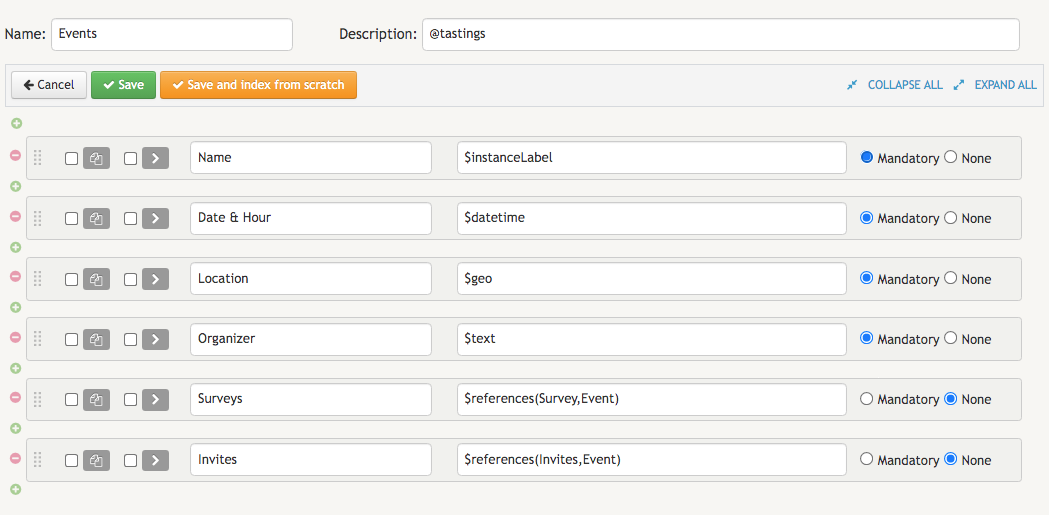
In the image below, we can see how the event organizer can send invites to guests and check the surveys that have been already submitted by those guests who actually went to the wine tasting and had the opportunity to taste the wines. As we can also see, this is all done from an instance of Events corresponding to the current month event: