
Searching with ReportM
As previusly mentioned, ReportM supports 3 types of search for fetching data, that is then used to fill sheets.
- Definition Search. Is a free text search over a definition
- Domain Search. Is a free text search over the definitions of a domain, applying the search to all definitons of the domain. The instances found in each definition are concatenated into a single listing.
- Elasticsearch Seach. Is a structured elastic search (which can contain aggregations) of a definition's index.
Definition Search
Definition Search performs a query on a definition, using the returned instances as the report data. This query is written using free search. Each instance will become a line in the report, where the selected fields will be columns.
In a definition search the following parameters in COB_SHEETS mean:
| Parameter | Meaning |
|---|---|
Target | Name of the definition to search |
search | The free search query you want to use |
Example
To create a report listing all the countries which use Euro as their currency, we could use a cob_config_v2 such as:
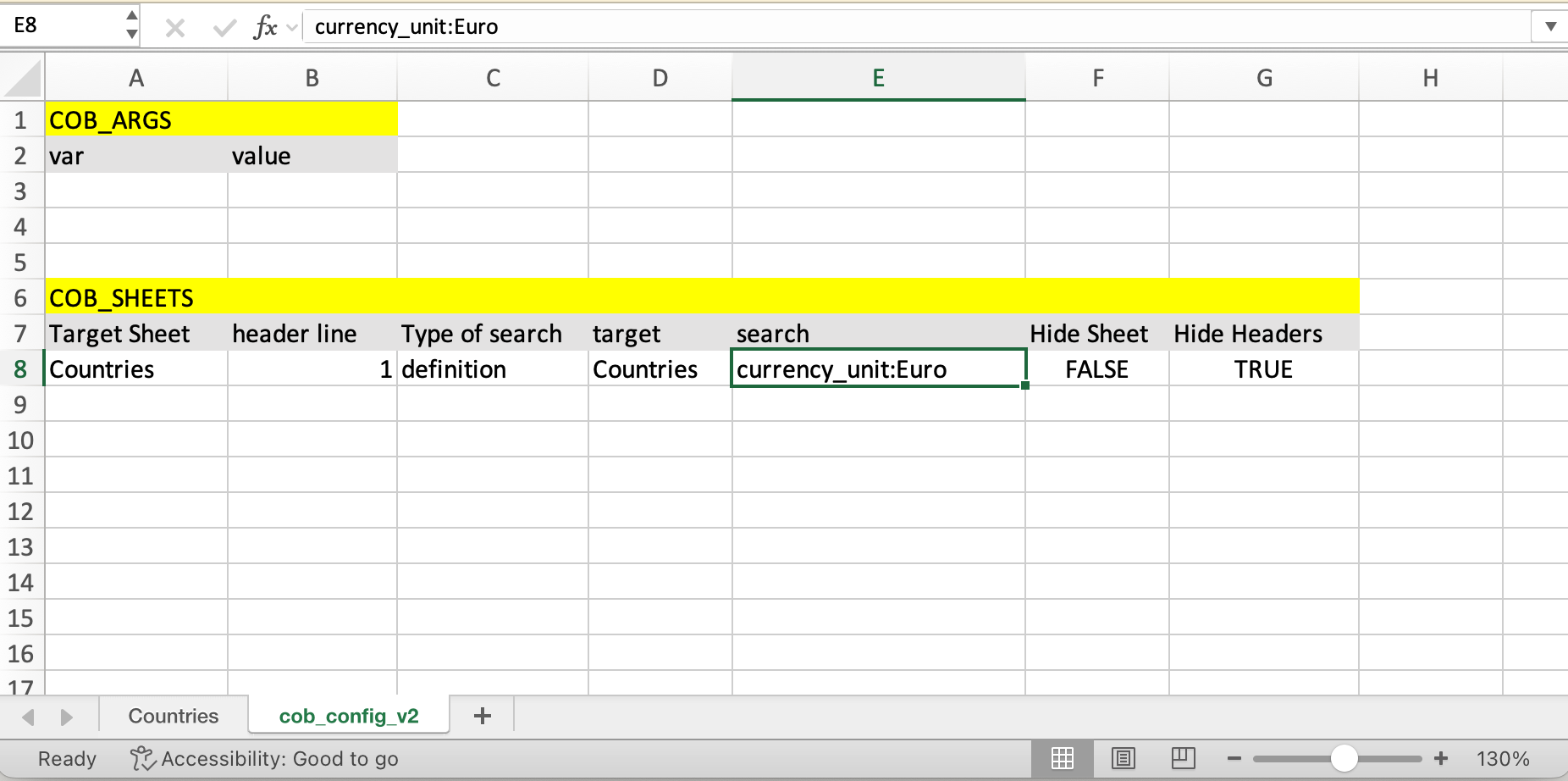
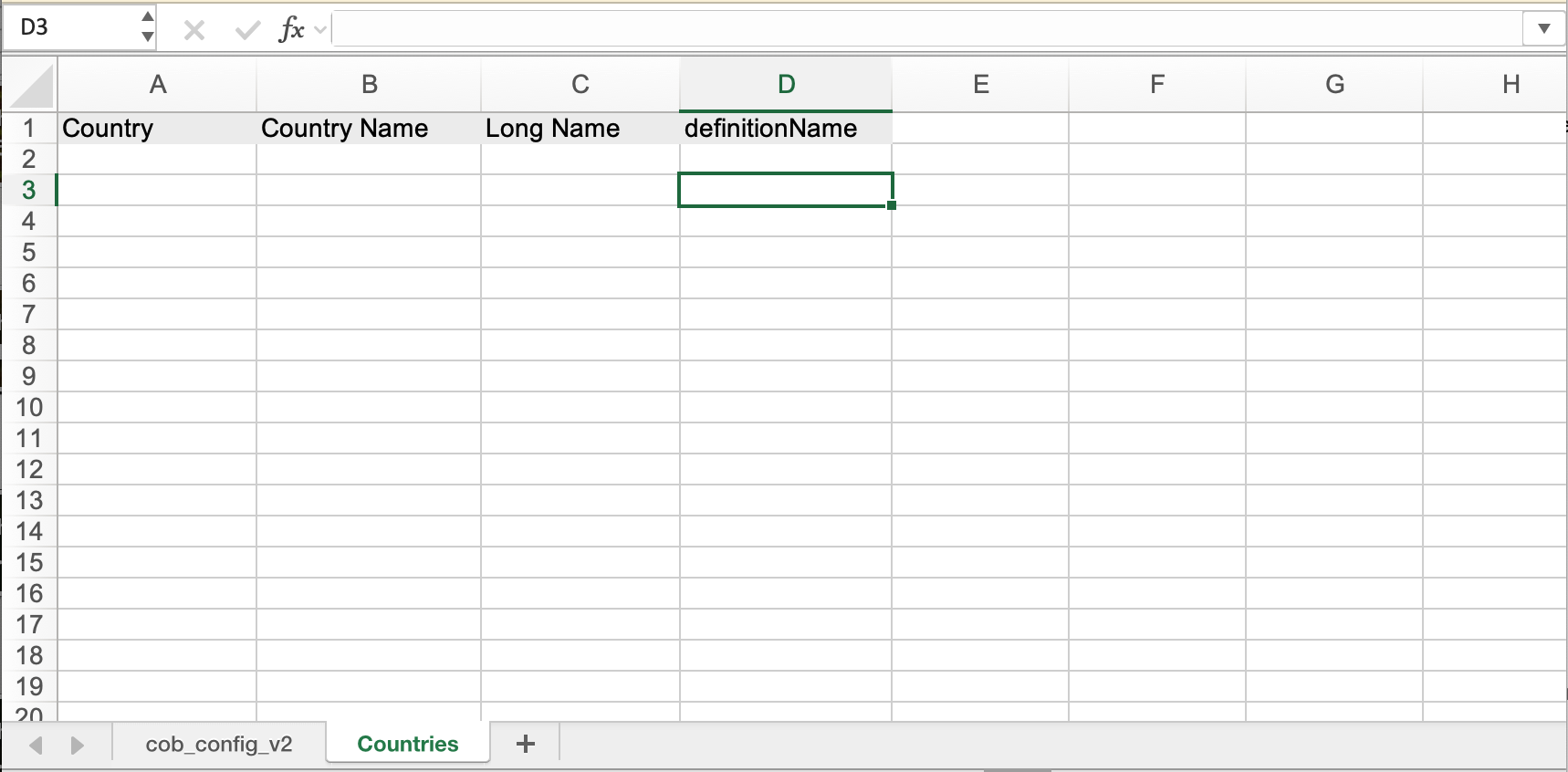
And a Countries sheet that looks like:
And the final result would be:
Domain Seach
Domain search works the same way as Definition Search but the Target is the name of a domain. The search query is performed across all definitions of that domain and the results are concatenated.
In a domain search the following parameters in COB_SHEETS mean:
| Parameter | Meaning |
|---|---|
Target | Name of the domain whose definitions are to be searched |
search | The search query to apply too all definitions in the domain |
For example, the domain @ELRD E-learning Demo has the following definitions:
- Countries
- Countries Series
- Country Events
- Country Trip Ideas
If our cob_config_v2 looks like this:
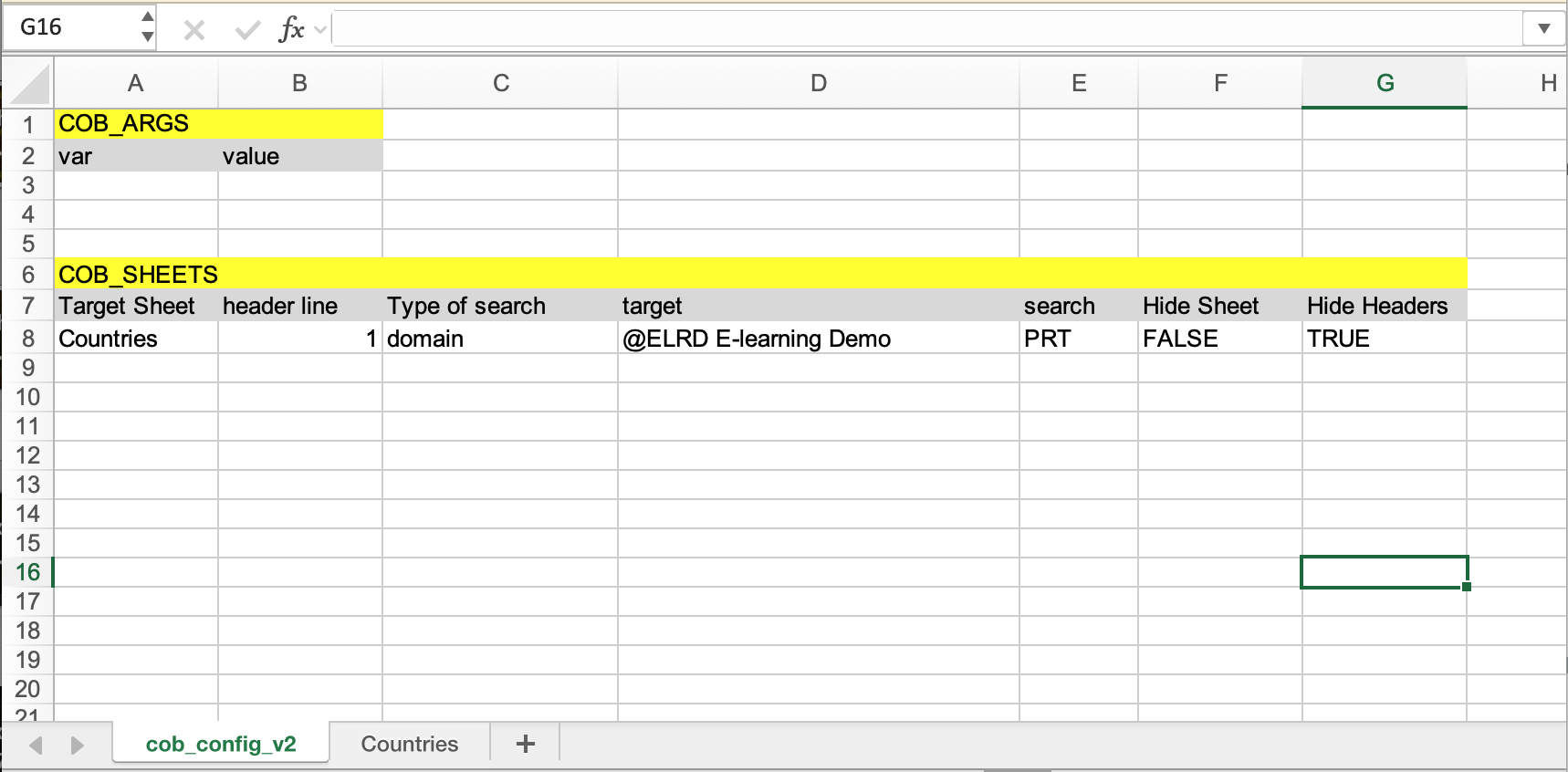
And Countries has the following columns:
TIP
The column definitionName becomes available for each instance, that indicates the definition they belong to.
Would produce:
WARNING
If a definition does not have a field specified in the header of a Target Sheet, that column will be empty for every instance of that definition.
Elasticsearch Search
Elasticsearch Search performs an Elasticsearch query over the index of a definition.
In an Elasticsearch search the following parameters in COB_SHEETS mean:
| Parameter | Meaning |
|---|---|
Target | Index of the definition. Indexes have the following name recordm-<definition id> |
search | The Elasticsearch query you want to use. It may include aggregations. |
Report Data in Elasticsearch Reports
The fields we specify in the report - in the Target Sheet - will affect the kind of data that is returned by the elastic search query. Take for example the following query, performed over the Countries definition, which includes an aggregation:
{
  "query": {
    "match_all": {}
  },
  "aggs" : {
    "per_currency" : { // Name of the bucket, selected by us
      "terms": {
        "field": "currency_unit.raw",
        "size": 100
      },
      "aggs": {
        "count": { // Name of sub-bucket, selected by us
          "cardinality": {
            "field": "id.raw"
          }
        }
      }
    }
  }
}
This query counts the amount of countries that have each type of currency.
- If we use
per_currencyorcountas field names in our report, ReportM will use the aggregation data to fill up those columns. - If we use some of the definition's field names, such as
long_name, ReportM will use instances.
This means that while querying Elasticsearch directly we can perform a search over instances and take advantage of Elasticsearch's full query power. However, we must be careful not to mix different types of data (aggregated vs not aggregated) because this will likely create undesireable reports.
NOTE
In elastic search queries, fields must be referenced in their search format (no space, all lowercase).
In aggregations, we must use always the .raw of a field, as this is the field in which we store a field's value as a keyword which allows elastic search to use it for aggregations.
Buckets in reports
If we use bucket names in our report, each bucket will generate a line for its sub-buckets (or one line if it has no sub-buckets.) Take for example the following query:
{
  "query": {
    "match_all": {}
  },
  "aggs" : {
    "per_currency" : {
      "terms": {
        "field": "currency_unit.raw",
        "size": 100
      },
      "aggs": {
        "per_income": {
          "terms": {
            "field": "income_group.raw"
          },
          "aggs": {
            "count": {
              "cardinality": {
                "field": "id.raw"
              }
            }
          }
        }
      }
    }
  }
}
In this case, we split countries over their income types for each currency unit. This means we'll have a line for each combination of per_currency and per_income present in our data.
Example
We're going to exemplify how to use Elasticsearch searches using the above query, in which we count how many countries of each income group exist for each currency.
As such, our cob_config_v2 would look like:
TIP
It is highly advised to write your Elasticsearch query on a different software and copy-paste it into Excel.
To help write these queries, Kibana is often a good starting point. It allows us to "Inspect" the query behind the chart and use it here.
While our Countries sheet looks like this:
Would produce: